Hello everyone,
Today we will dive into SAP Analytics Cloud account type Sign behavior, with/without formula and parent-child hierarchy assigned.
1. ABOUT ACCOUNT TYPES
There are two categories of financial account: Balance Sheet and Profit and Loss. Balance Sheet accounts include Assets, Liabilities, and Equity, while Profit and Loss accounts consist of Income and Expenses.
SAP Analytics Cloud (SAC) introduces the idea of Account Type from SAP BPC to enhance finance-oriented modeling as following:
| Accounts | Account Type in SAC | Sign flip Flag |
| Income | INC | X |
| Expenses | EXP | |
| Assets | AST | |
| Liabilities and Equity | LEQ | X |
| Non-Financial | NFIN |
2. ACCOUNT TYPE WITHOUT FORMULA
For account-based modeling in SAC, formulas usually exist in leaf or orphan members, or do not exist at all (for planning cases where the business scenario has complex calculations, they use Data Action). The table above mentioned the sign flip flag of each type. For INC and LEQ values, it will auto-reverse the sign in the story, while the actual value is shown in the Model Preview. First, let’s dive a little deeper into the sign behavior without a formula of SAC Account Type!
2.1. Upload data from flat file with Reverse Sign setting
In this example, I built a simple model with 4 financial account types: INC, EXP, AST, and LEQ, and one measure called Amount_GLACC to store the value. Sample data would be like this:
| DATE | GLACC | Amount_GLACC |
| 202501 | INC1 | 800 |
| 202501 | EXP1 | 100 |
| 202501 | AST1 | 200 |
| 202501 | LEQ1 | 200 |
When uploading data from flat file to SAC Model and hit Run Import, you can change the Reverse Sign option by clicking Change Settings:
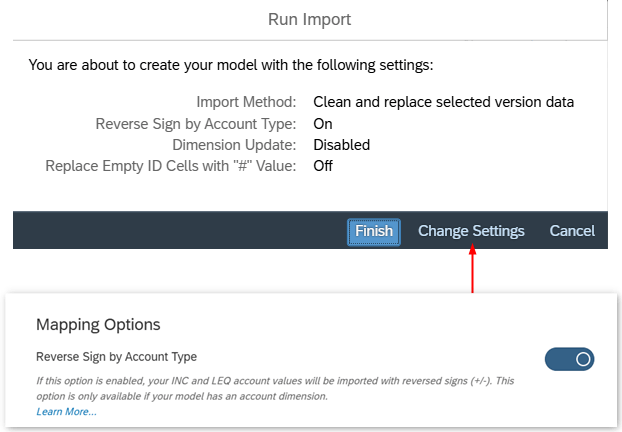
- Reverse Sign ON : INC and LEQ account sign will be reversed, EXP and LEQ account sign remain.
- Reverse Sign OFF : remain the same sign as source
In our example, if Reverse Sign is ON, INC1 = -800 and LEQ1 = -200:
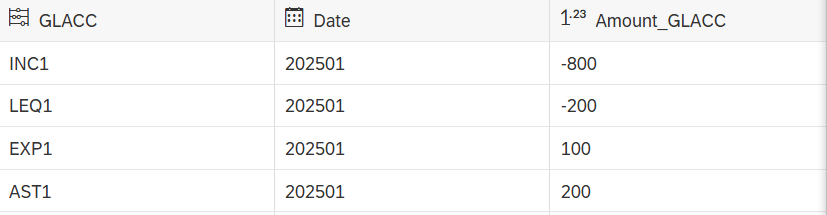
INC and LEQ value flip sign in Story:

If Reverse Sign is OFF , all value remain positive the same as source file:
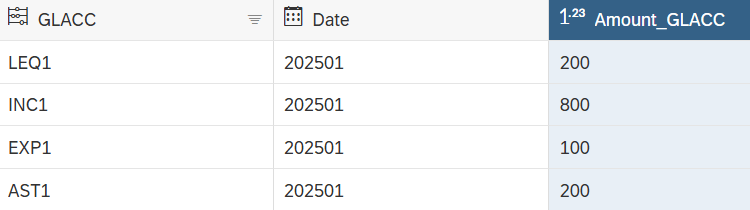
INC and LEQ value flip sign in Story:
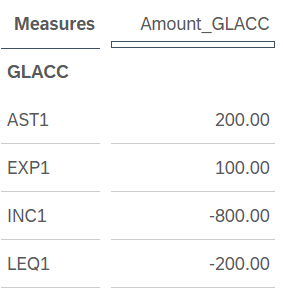
Conclusion: INC and LEQ accounts reverse sign in story.
2.2. Data entry with account type assigned
When user performs data entry with account type members, let’s see the sign behavior for this case.
Before data entry:
- Data in model (actual value):
- Data in story (story value):
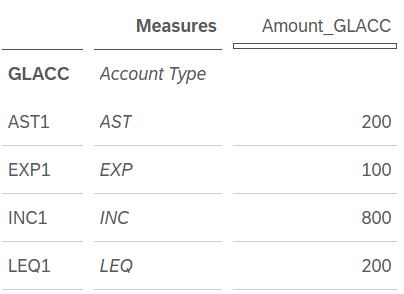
Action: Input INC = 600
After data entry:
- Data in model (actual value) – Unpublished data switch on:
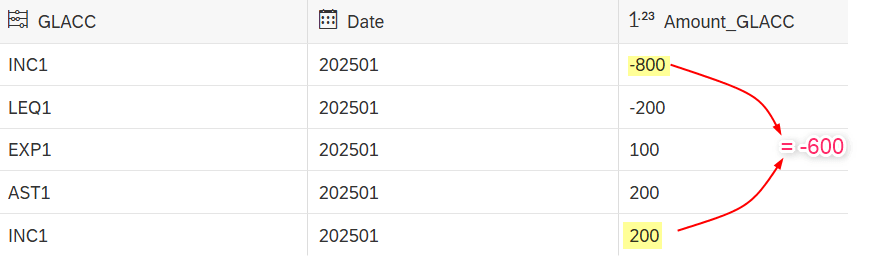
- Data in story (story value):
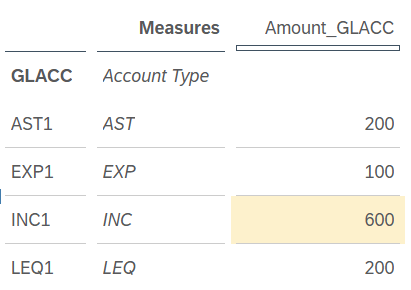
Conclusion: Input value = story value = reversed value in the model
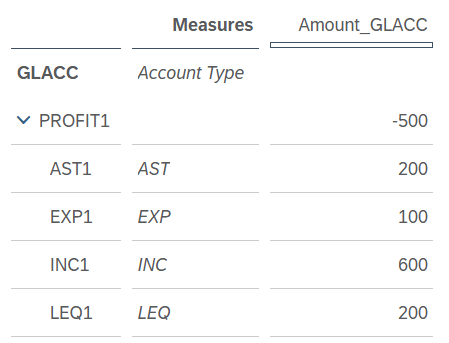
Let’s add the parent PROFIT1 of these 4 members as below:
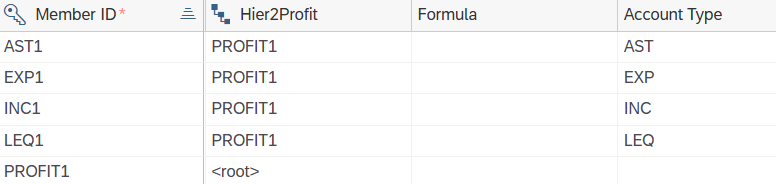
The result of PROFIT1 = -500, it uses the actual value in model to calculate.
In this example: PROFIT1 = INC1 + EXP1 + AST1 + LEQ1 = -600 + 100 +200 -200 = -500
If PROFIT1 is assigned with account type, for example INC, the value is reversed to 500:
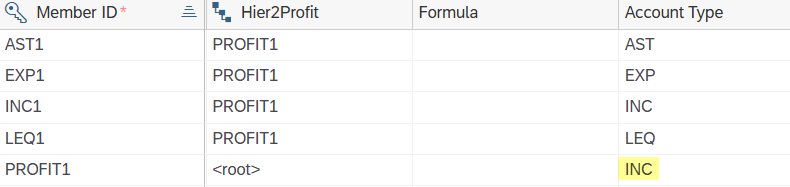
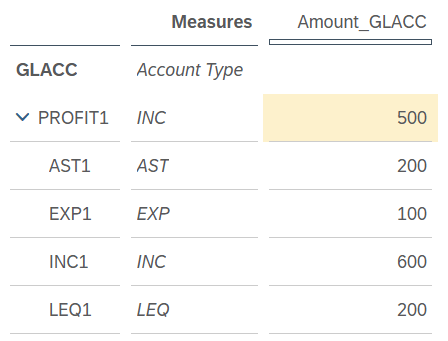
Conclusion: Direct parent member uses the actual value of child members to calculate, value will reverse sign if parent is INC or LEQ account type.
We can summarize the sign behavior (Reverse Sign import setting is OFF) for the upload and data entry as below:
| Account Type | Upload | Model | Story | Input in story |
| INC | + | + | – | – |
| EXP | + | + | + | + |
| AST | + | + | + | + |
| LEQ | + | + | – | – |
| INC | – | – | + | + |
| EXP | – | – | – | – |
| AST | – | – | – | – |
| LEQ | – | – | + | + |
2.3. Account Type with Parent Child Hierarchy
2.3.1. Parent member with no account type setting
Let’s go back to the example where the actual value (value in model preview) of INC1 = -800 and LEQ1 = -200:
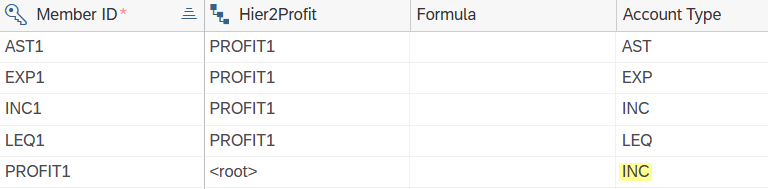
Parent-child hierarchy setup:
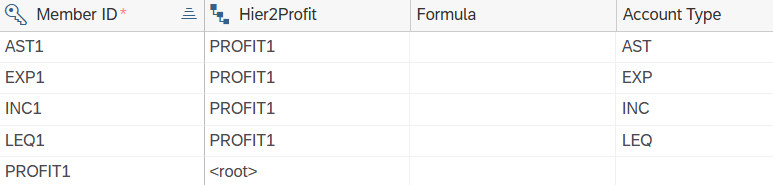
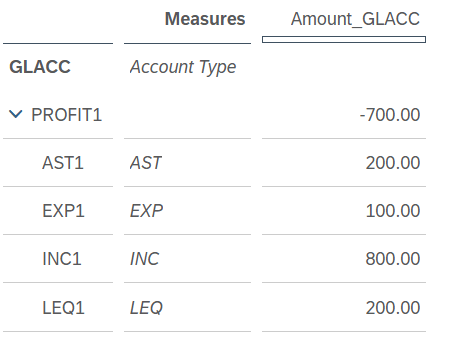
If we have a parent of these 4 members, with no formula or account type assigned, parent result use the actual value of child members in model to calculate. In this case PROFIT1 equals to -800 -200 +100 +200 = -700:
2.3.2. Parent member with account type setting
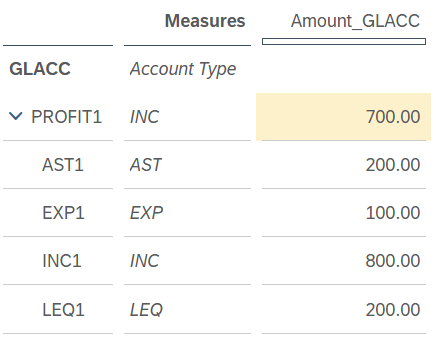
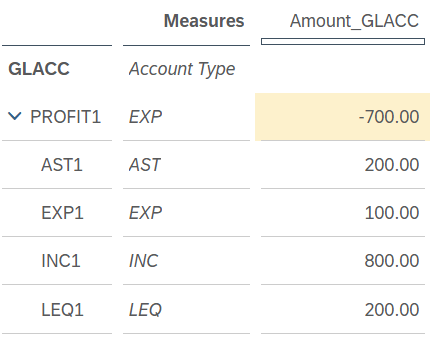
With above example, if parent member PROFIT1 has no formula and is assigned with INC or LEQ account type, the sign will be flipped to 700 in story, if PROFIT1 is EXP or AST then value does not reverse ( = -700):
In case PROFIT1 is an intermedia member and has another parent called PROFIT2 (no formula):
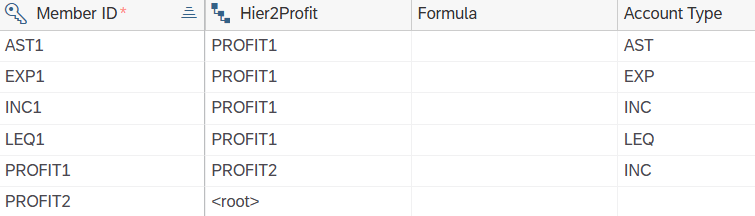
the result calculation is similar like above:
- PROFIT2 has no account type assigned: = actual value of PROFIT1
( = INC1 + EXP1 + AST1 + LEQ1 = -800 +100 +200 -200 = -700)
- PROFIT2 has INC account type assigned: = story value of PROFIT1
( = INC1 + EXP1 + AST1 + LEQ1 = -800 +100 +200 -200 = -700 -> Flip sign = 700)
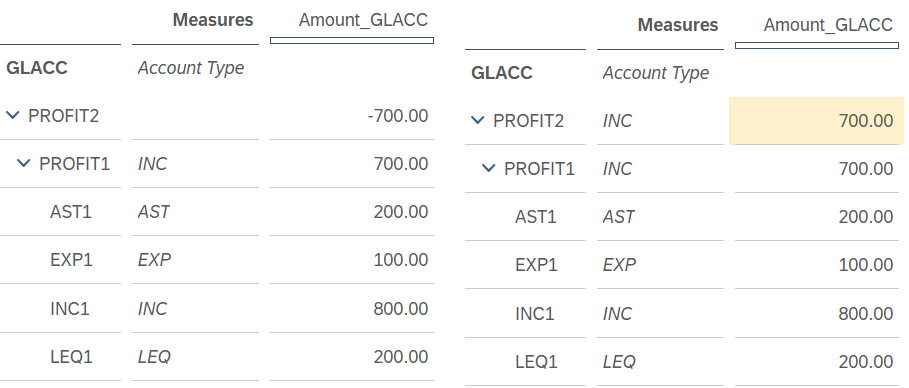
In the case that PROFIT1 is not assigned with account type, the rule to calculate PROFIT2 still follows the same method:
- PROFIT2 has INC account type = actual value of PROFIT1 = -700 -> Flip sign = 700

- PROFIT2 with no account type = actual value of PROFIT1 = -700
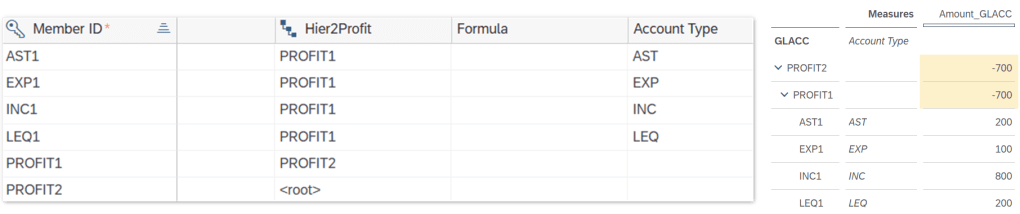
Conclusion: If no formula is set, parent members total the actual values of child members, reversing the sign for INC or LEQ account types.
3. ACCOUNT TYPE WITH FORMULA
Usually, child account members don’t have formulas, while parent members do. Let’s examine parent members with/without formulas and with/without assigned account types combination.
We still use the previous data example:
3.1. Parent member has formula and no account type setting
Let’s add a simple formula for PROFIT1: = INC1+EXP1 and set no account type

In story, PROFIT1 value = 900
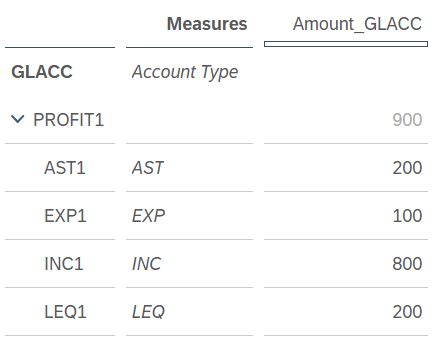
If following the above rule using the actual value of members to calculate, it should equal to -800+100 = -700. But for the case that member has formula, it use the story value to calculate. In this example, PROFIT1 = INC1 + EXP1 = 800 + 100 = 900.
Adding to the case, member PROFIT2 (parent of PROFIT1) value if no formula/account type set, it equals to PROFIT1:

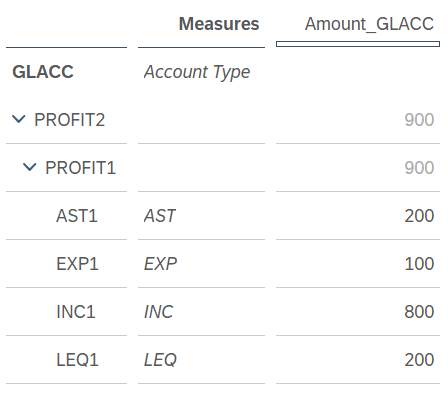
If PROFIT2 also has formula: = 100 + PROFIT1 , the result use the story value of PROFIT1 to calculate, equals to 1000 = 100 + 900
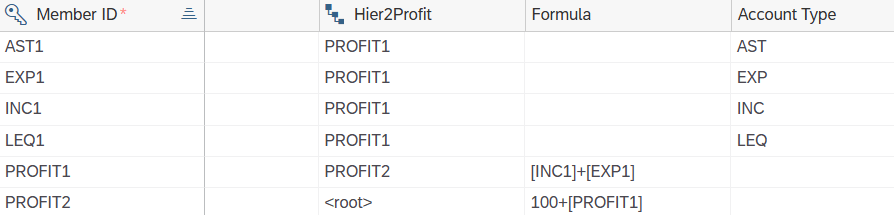
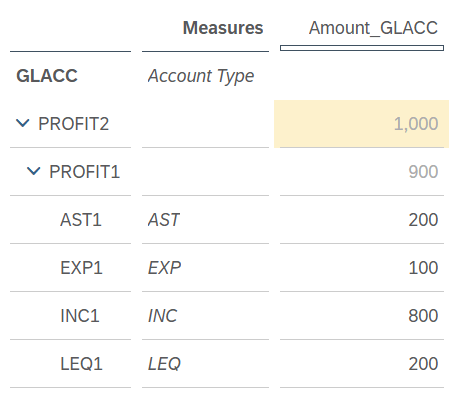
Conclusion: if parent member has formula and no account type setting, it uses the story value of child member for calculation.
3.2. Parent member has formula and account type setting
If PROFIT1 has formula = INC1 + EXP1 and assign with INC type:
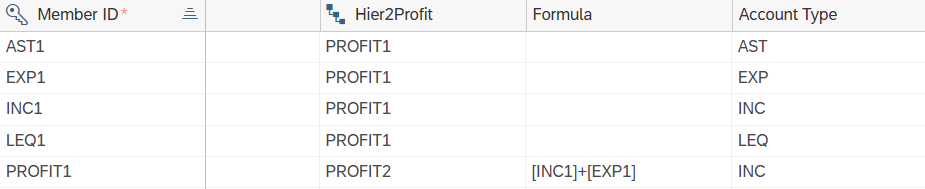
The result displays below:
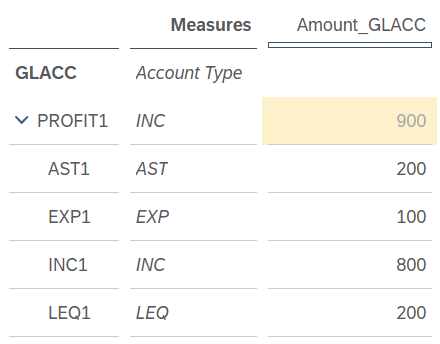
PROFIT1 = 900 , which means it is identical to the case with no account type. This is the story value of PROFIT1, let’s check the actual value of PROFIT1 by 2 ways:
#1: First, creating another member called temp with no account type assigned, is the <root> member in current hierarchy, formula = PROFIT1, the result shows 900:
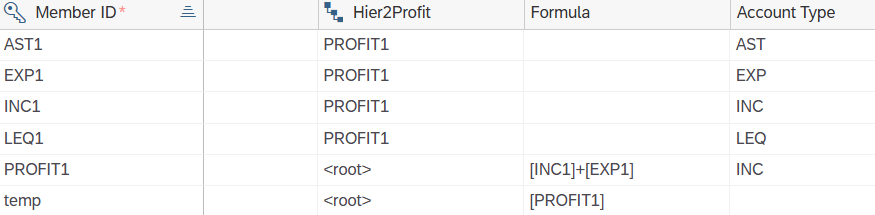

#2: Second, PROFIT2 as parent of PROFIT1 , no formula or account type assigned:
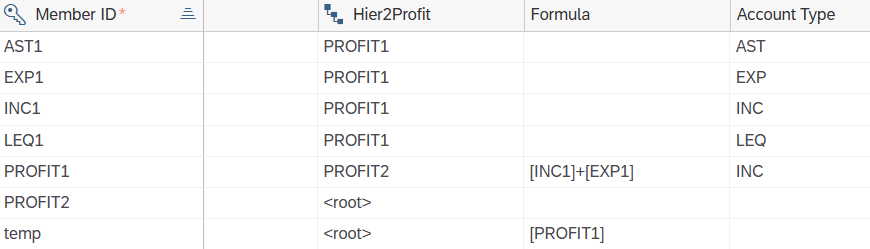

We can see the value sign of PROFIT2 is reversed. This is because temp member is not the parent of PROFIT1 and retrieves the story value of PROFIT1, while member PROFIT2 is the direct parent and consider the account type, it gets the reversed value after calculation of PROFIT.
Let’s test further with temp member, if it’s assigned with account type, the result remain the same for 4 account types:
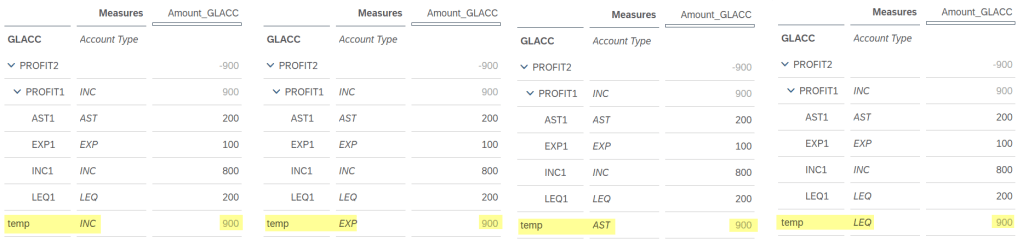
Conclusion: a member that is not relate to account type member, with formula equal to that specific member, get the story value no matter what its account type.
Let’s continue with the parent member PROFIT2:
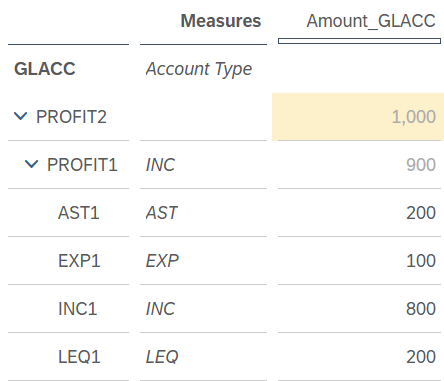
If parent PROFIT2 also has formula, for example = 100 + PROFIT1, and no account type setting as below:

The result uses the story value to calculate: = 100 + 900 = 1000
And what if PROFIT2 also set account type:
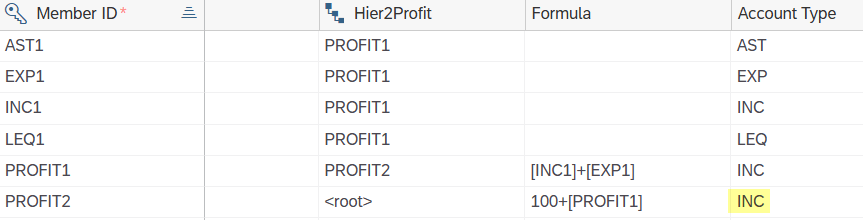
The result remains 1000 the same for 4 account types:
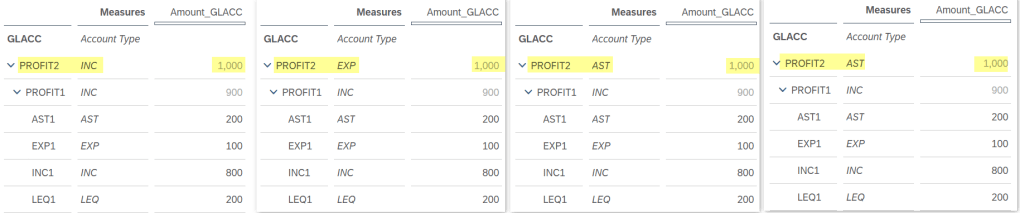
Conclusion: for direct parent member with a formula and with or without account type, the result in story uses the story value of the child members for calculation. The actual value within the current hierarchy is in reversed sign.
Thank you for reading, and I hope this helps you in debugging the data mismatch with the account type issue in SAP Analytics Cloud.
Best regards,
Linh Dinh.
 SAP Zero to Hero