Hi guys, good day to you!
Today I wanna give a detail view in displaying and filtering SAP Analytics Cloud story via URL. This blog refers to SAP Documentation with a detailed look and screenshots attached.
(Please use laptop screen for better display if possible, thank you.)
1. Open story via URL
Story can be opened directly via URL, this is efficient in specific cases where we control SAC stories in customer applications or through Web. Below is the syntax:
https ://<TENANT>/sap/fpa/ui/tenants/<TENANT_ID>/app.html#/story&/s/<STORY_ID>/?mode=<mode>
- <TENANT> is your public tenant URL. Example: mysac.ap11.hcs.cloud.sap
- <TENANT_ID> is your unique tenant ID.
Go to SAC Menu bar > System > About > Your System name is your tenant ID (put it in URL in lowercase).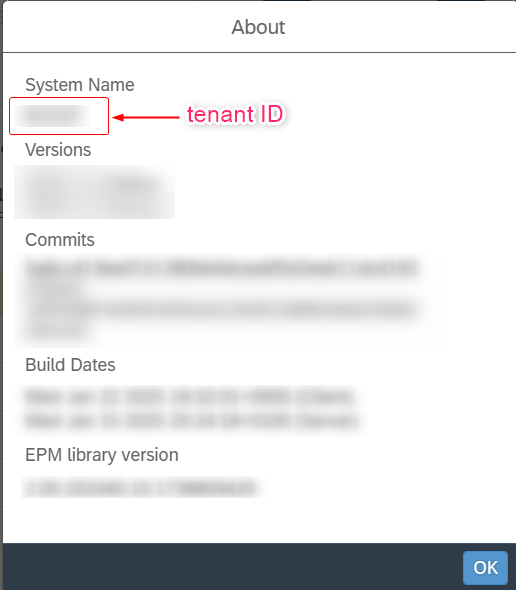
- <STORY_ID> is your story technical ID. It can be retrieved in your default story URL or via Share function
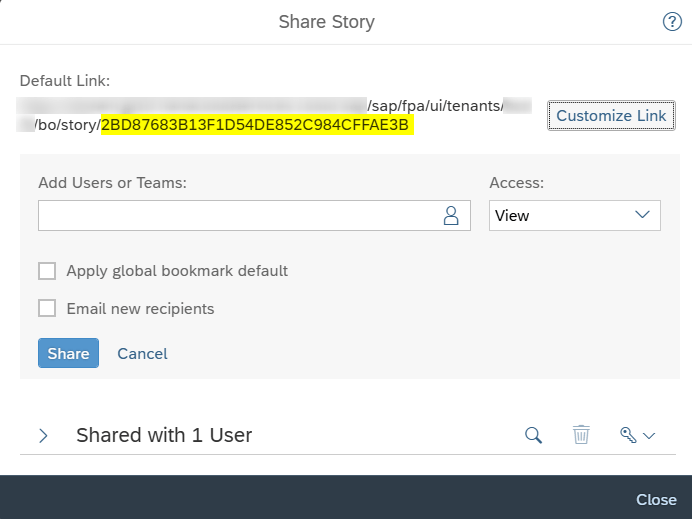
2. DISPLAY PARAMETERS
2.1. <mode> Indicates the mode the story will open in. Default is in view mode.
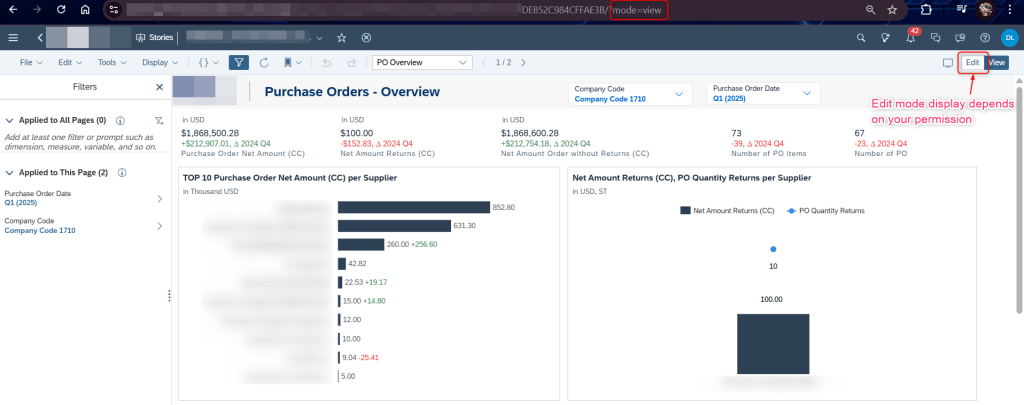
1. view: open in view mode, menu/toolbar is visible.
2. edit: open in edit mode, can edit the story when having edit permission, if not then read-only (view mode)
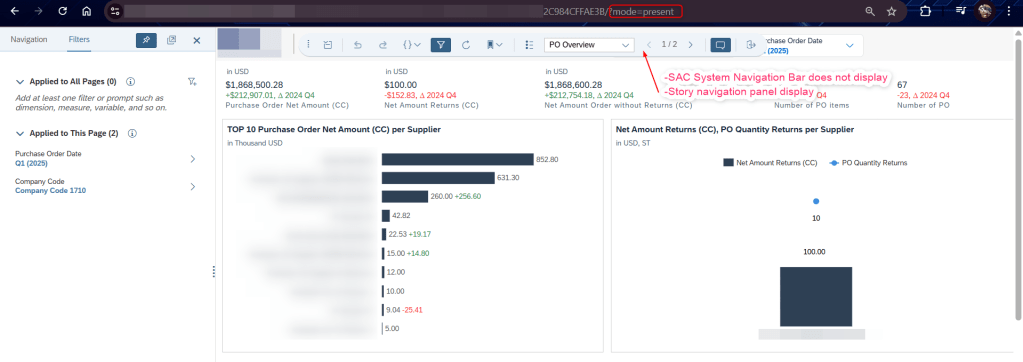
3. present: in presentation mode, pagebar is visible, main menu and toolbar is hidden, only appear when hovering.
4. embed: open in embed mode. Pagebar with filter button is visible but main menu bar/toolbar is hidden.
Examples of Modes:
1.mode=view
- SAC sytem navigation is displayed
- Story page bar is displayed and cannot be hidden
2. mode=edit
(if you do not have edit permission to this story it will automatically open in view mode instead)
- SAC sytem navigation is displayed
- Story builder toolbar is displayed and developers can edit

3.mode=present
- SAC sytem navigation is not displayed
- Story page bar is displayed and can be hidden
4.shellMode=embed
For embed mode, we do not place it after story ID like other modes, instead, place it after /story? or /story2? and add & after shellMode=embed
Example: https://<TENANT>/sap/fpa/ui/app.html#/story2?shellMode=embed&/s2/<STORY_ID>/
- SAC sytem navigation is not displayed
- Story page bar is displayed and cannot be hidden (except for using pageBar parameter)
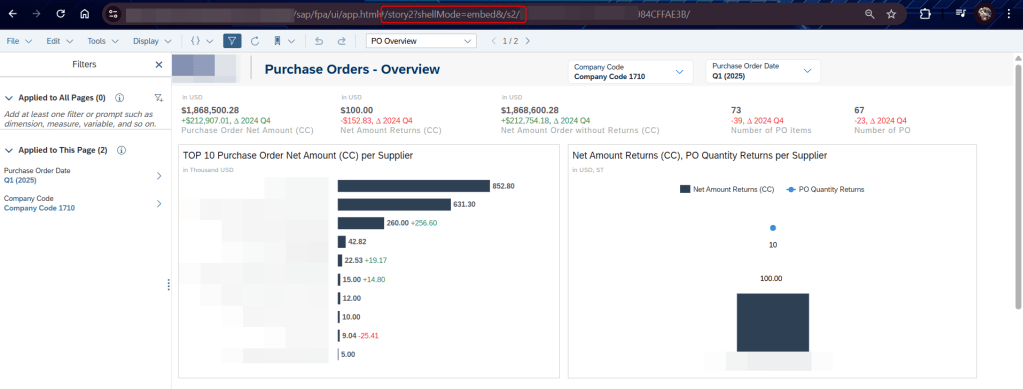
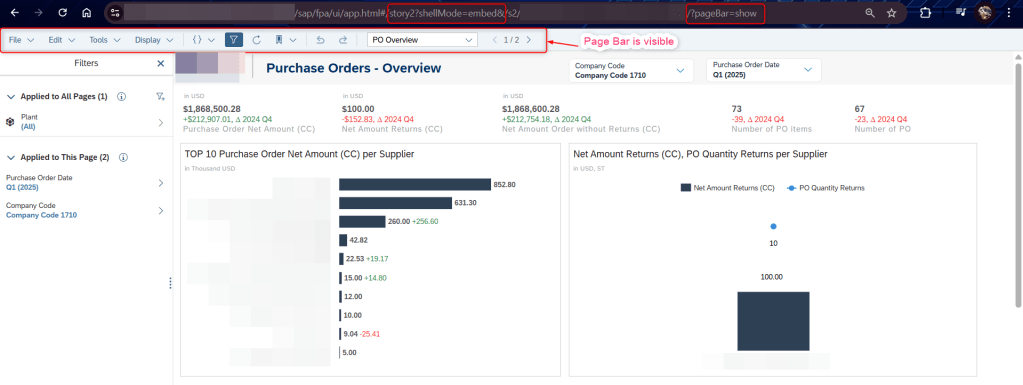
2.2. <pageBar> : show or disable the page bar, only applicable to embed mode.
The page bar is shown by default.
1.pageBar=show : makes the pagebar visible, user can navigate to other pages
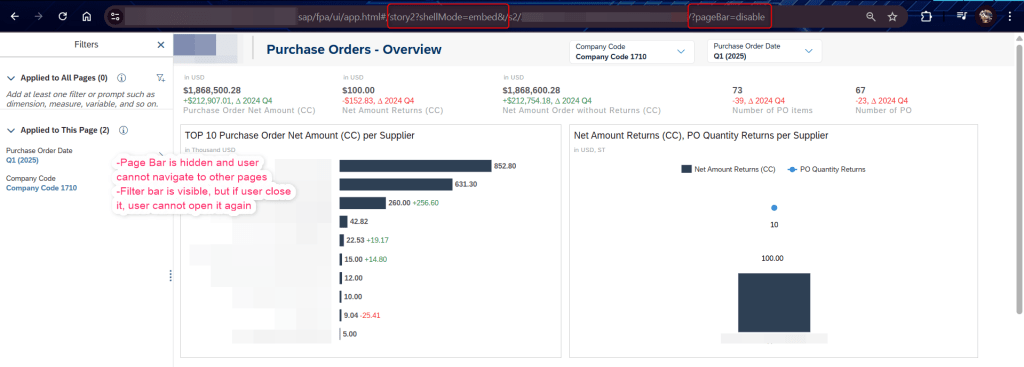
2.pageBar=disable : hides the pagebar, user cannot navigate to other pages
2.3. <page> : opens the n story page in the pagebar.
Eventhough SAP stated that this parameter depends on the mode : in edit mode the hidden pages are still counted while in other modes, those are not counted. However, it still counts the hidden pages in other modes, in both story creator’s and viewer’s perspectives.
page=<id>
page=1 : open the first page
page=2 : open the second page
in below example, Page_2 is 3th page and is hidden. For all modes, specify page=3 in URL and it will display the hidden page

3. FILTER PARAMETERS
Using parameter to filter your story, this will come convenient if user filter value is passed from 3rd customer application.
If filters already existed in story, filters applied in the URL will replace any filters on the same dimension. If not then URL filters added as story filters.
3.1. f<XX>Model=<Model_ID>
Identify the model to filter. This parameter is mandatory since model used in story could be single or multiple.
- <XX>: from 01-99 is the index, if there is several filters passed, assign the unique value for XX to specify.
- For native models in SAC, <Model_ID> can be easily found in URL or in the Share Model button:


- For external models, e.g. Datasphere analytic model, <Model_ID> can be found using this following URL:
| https://<TENANT>/api/v1/stories?include=models |
Click on pretty-print and search (CTRL+F) for your Story Name, then copy ID from models part:
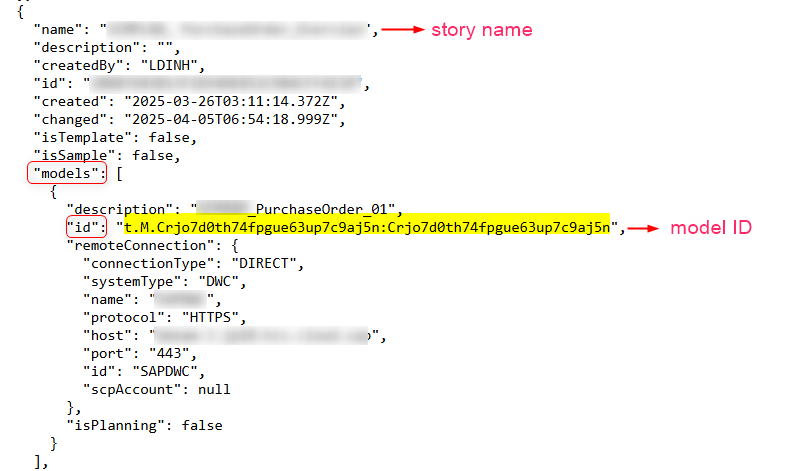
Example: f01Model=t.M.Crjo7d0th74fpgue63up7c9aj5n:Crjo7d0th74fpgue63up7c9aj5n
3.2. f<XX>Dim=<Dimension_ID>
Identify the dimension to apply the filter to, using the dimension technical ID. This parameter is mandatory.
- For native SAC models, <Dimension_ID> can be retrieved in Modeler.
- For external models, <Dimension_ID> can be retrieved in store Edit Mode in 2 ways:
#1 : open Data Builder and hover to Dimension
#2: open Data Builder and Rename dimension
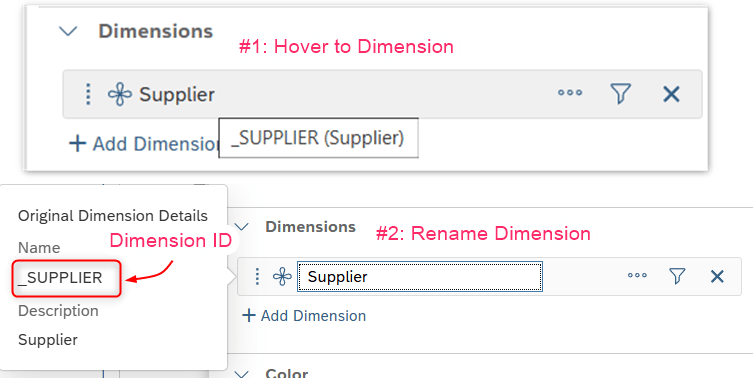
Example: f01Dim=_SUPPLIER
3.3. f<XX>Val=<Member_ID>
Filter values for a dimension, using the member ID. This parameter is mandatory.
- Single dimension member: f<XX>Val=<Member_ID>
- Multiple dimension members: f<XX>Val=[“<Member_ID1>“,”<Member_ID2>“,…]
<Member_ID> can be found by below approaches:
- For native SAC models, <Member_ID> can be retrieved in Modeler.
- For external models, <Member_ID> can be retrieved by creating a filter for the dimension and hover over the dimension list, or select the down button and choose to display the ID and Description
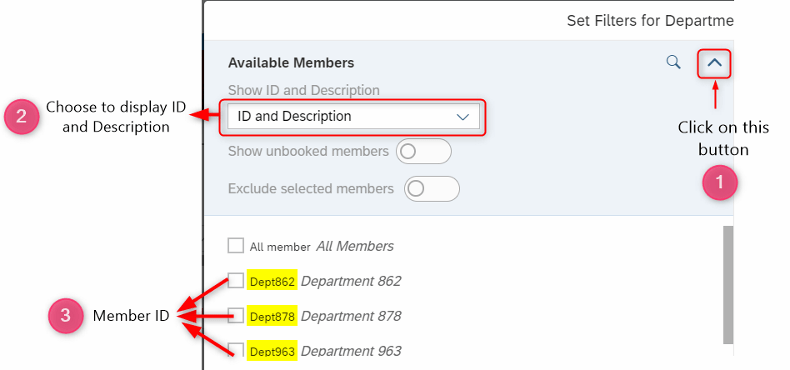
Examples: f01Val=Dept862 , f01Val=[“Dept862″,Dept963”]
Combine 3 parameters we are able to filter a story through URL:
(add & between parameters)
Example 1: filter Plant dimension = 1710 (Description : Plant 1 US)
https://<TENANT>/sap/fpa/ui/tenants/<TENANT_ID>/app.html#story2&/s2/<STORY_ID>/?mode=present&f01Model=t.M.Crjo7d0th74fpgue63up7c9aj5n:Crjo7d0th74fpgue63up7c9aj5n&f01Dim=_PLANT&f01Val=1710
Result reflects below:
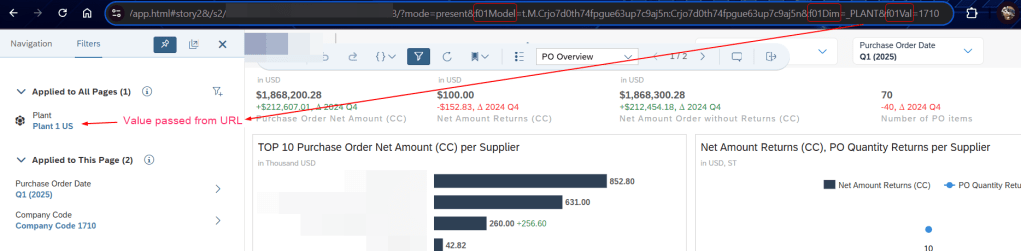
Example 2: filter Plant dimension = 1710 (Description : Plant 1 US) and 1010 (Description : Plant 1 DE)
f01Model=t.M.Crjo7d0th74fpgue63up7c9aj5n:Crjo7d0th74fpgue63up7c9aj5n&f01Dim=_PLANT&f01Val=[“1710“,”1010“]
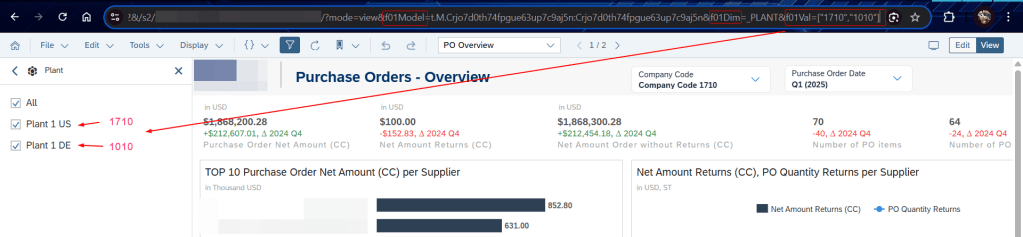
3.4. f<XX>Hierarchy=<Hierarchy_ID>
Indicates a hierarchy to filter on. This parameter is optional.
Example: filter first half of year 2025 (2025H1)
<Hierarchy_ID> can be found in:
- For native SAC models: get the <Hierarchy_ID> by accessing the dimension and get the hierarchy ID in property panel.
- For external models: create a story filter, set filter and hover over the dimension list, select the down button and choose to display the ID and Description. Hover over the Hierarchy and get the Hierarchy ID:

Example: filter purchasing data with Purchase Order Date = 13th Week of 2025 using Year-Week-Date hierarchy.
f01Model=t.M.Crjo7d0th74fpgue63up7c9aj5n:Crjo7d0th74fpgue63up7c9aj5n&f01Dim=_PURCHASEORDERDATE&f01Hierarchy=YWD&f01Val=202513
3.4. f<XX>Op=<In or notIn>
Indicates which operator to use to filter with, default set to in. This parameter is optional.
- f<XX>Op=In (include the filter values in the member selection)
- f<XX>Op=notIn (exclude the filter values in the member selection)
Example: filter data of Plants that are not Plant 1710 or 1010 f01Model=t.M.Crjo7d0th74fpgue63up7c9aj5n:Crjo7d0th74fpgue63up7c9aj5n&f01Dim=_PLANT&f01Val=[“1710“,”1010“]&f01Op=notIn

3.5. f<XX>Unbooked=<true or false>
Decide if you want to filter against unbooked data. This parameter is optional.
- f<XX>Unbooked=true (include unbooked data in filter)
- f<XX>Unbooked=false (exclude unbooked data in filter)
4. VARIABLE PARAMETERS
If your story using prompts (e.g. Input Parameters in Datasphere, model variables in SAC), using variable parameters to transfer the values. It’s similar to filter parameter above. Variables will be applied to the story before filters are applied.
| Parameter | Function | Syntax | Example | |
| Required | v<XX>Model | Identifies the model to filter. | v<XX>Model=<Model_ID> | v01Model=t.M.Crjo7d0th74fpgue63up7c9aj5n:Crjo7d0th74fpgue63up7c9aj5n |
| Required | v<XX>Par | Identify the variable to apply the filter to. Only single value variable types are currently supported. Interval and range variable types will be treated as single value variables and set to the value specified. | v<XX>Par=<Variable_ID> | v01Par=_PLANT |
| Required | v<XX>Val | Identifies the values to use for the variable | Single value: v<XX>Val=<Value> Multiple value: v<XX>Val=[“<Value1>“,”<Value2>“,…] | v01Model=t.M.Crjo7d0th74fpgue63up7c9aj5n:Crjo7d0th74fpgue63up7c9aj5n&v01Par=_PLANT&v01Val=1010 |
Thank you for your time, hope it’s helpful. Any advice is appreciated, please help leave a comment. Have a great day!
Best regards,
Linh Dinh.
 SAP Zero to Hero