
Hello guys, it’s been a long time 🙂
Today I would like to brief an introduction to Publication function for SAC reports.
This blog is referencing to SAP Documentation.
Publication function: ability to schedule export of your SAC story to SAC and non-SAC users with dedicated data views.
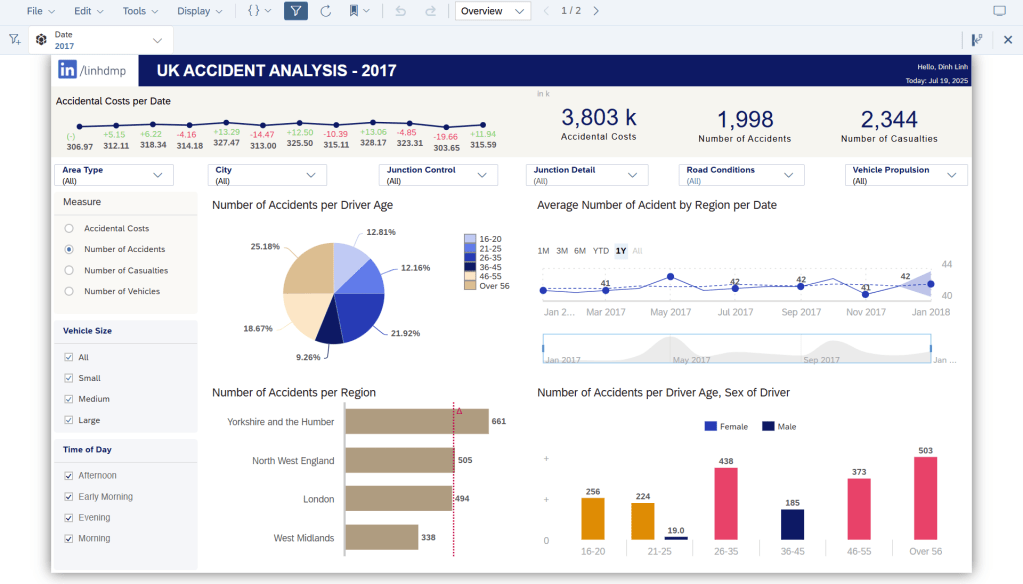
Testing context: My story has 1 story filter: Date, I will schedule publications to SAC and non-SAC users with specific year filter applied.
Prerequisites:
Step 1: Allow the schedule publication setup:
SAC Side Menu > Administration > System Configuration Tab > Enable 2 Functions as below:

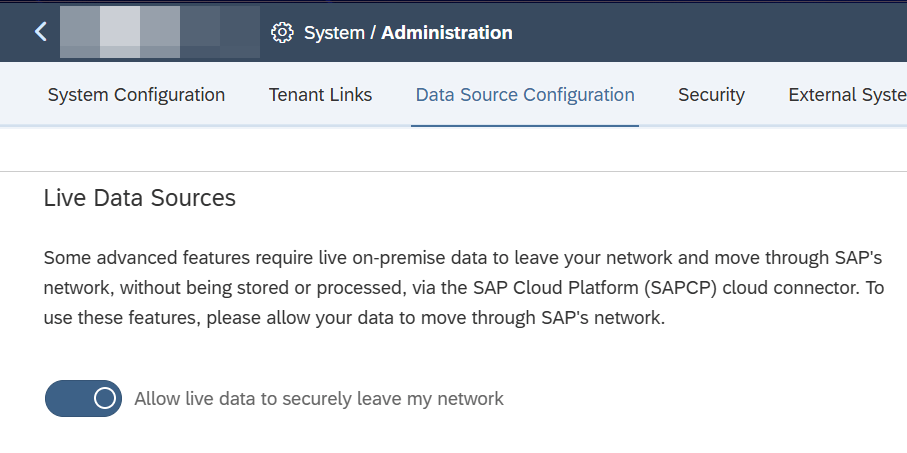
Step 2: In case your story connected with Live Data, you need to allow Live Data leave SAC:
Go to Data Source Configuration tab > Enable the option “Allow live data to securely leave my network”.
This means you allow the publication with Live data be feasible on your SAC tenant and the publication will use the user credentials corresponding to the live connection.
Supported Connections for Publication functions:
- All import connections
- Live connections:
- SAP HANA or SAP HANA 2.0
- SAP S/4HANA
- SAP HANA Cloud
- SAP BW (BusinessWarehouse)
- Live data tunnel connections
Schedule Publication Step-by-Step
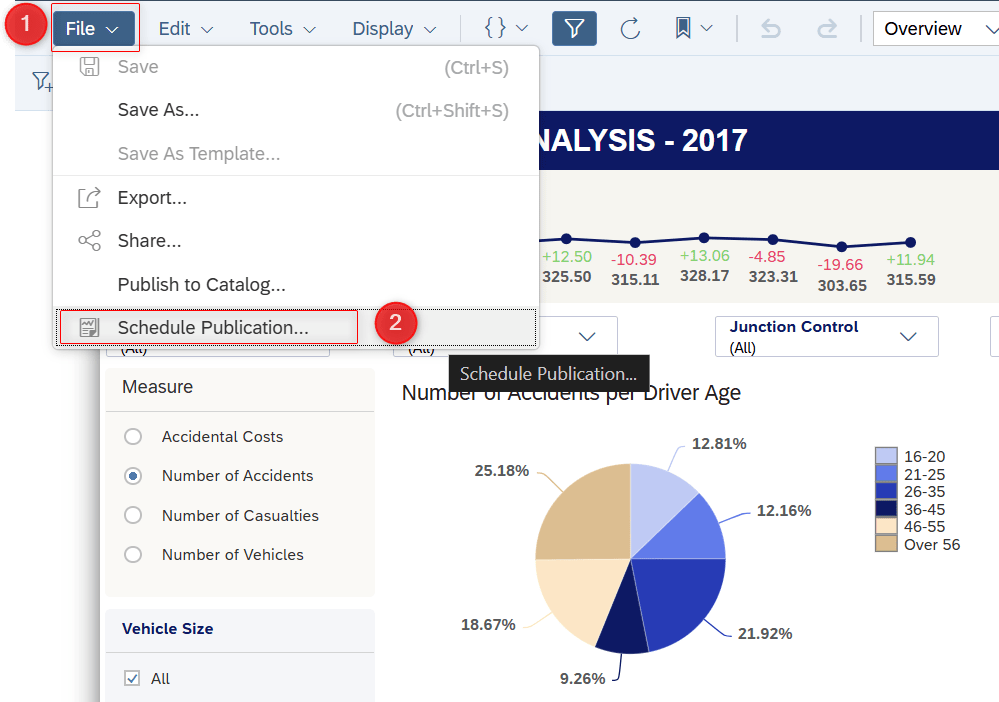
Step 1: Access SAC story > File > Schedule Publication…:
Step 2: Fill in required information to create your publication process in SAC Calendar and define your email setup:

(1) Choose Mode: Specify if this story will be shared using your authorization or recipient’s authorization
This authorization depends on data source security setup. In this example, since I’m using flatfile as data source so I will select option Broadcast.
(2) Event: Setup your SAC Calendar Event detail
Each publication will generate an event or what we call Process in SAC Calendar. You need to specify the Name and Start Date (the time when SAC send the email to recipients). You have the option to schedule recurrence if this action is repetitive, additionally you can check if this event is clash with other events on your SAC Calendar.
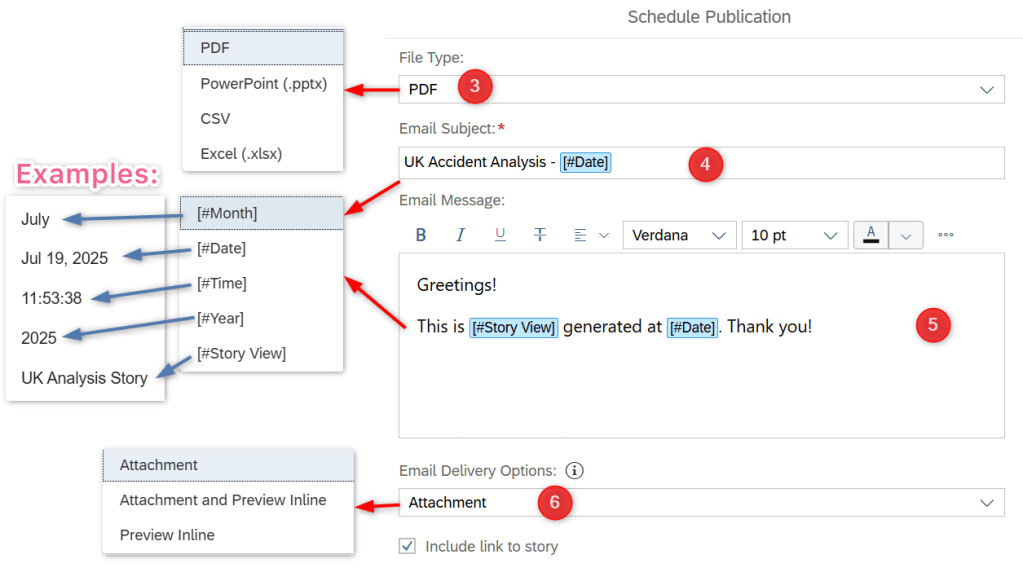
(3) File Type: Specify the attachment type
There are 4 types listed below:
- PDF, PPTX : print our your story with all visualization displayed
- CSV or XLSX: print our your story with flat data only
(4) Email Subject: Specify the email title that send to recipients
You have 5 options of dynamic texts to define the Date Time or Story Name, please see the example for each in above screenshot.
(5) Email Message: Specify the email body that send to recipients, usually to bring more context of the report
You also have 5 options of dynamic texts as well.
(6) Email Delivery Options: Specify how your story be displayed in the email
- Attachment: file type that you selected on (3)
- Attachment and Preview Inline: file type that you selected on (3) + captures of the story
- Preview Inline: Only captures of the story (no attachment)
Distribution: Define specific views for recipients
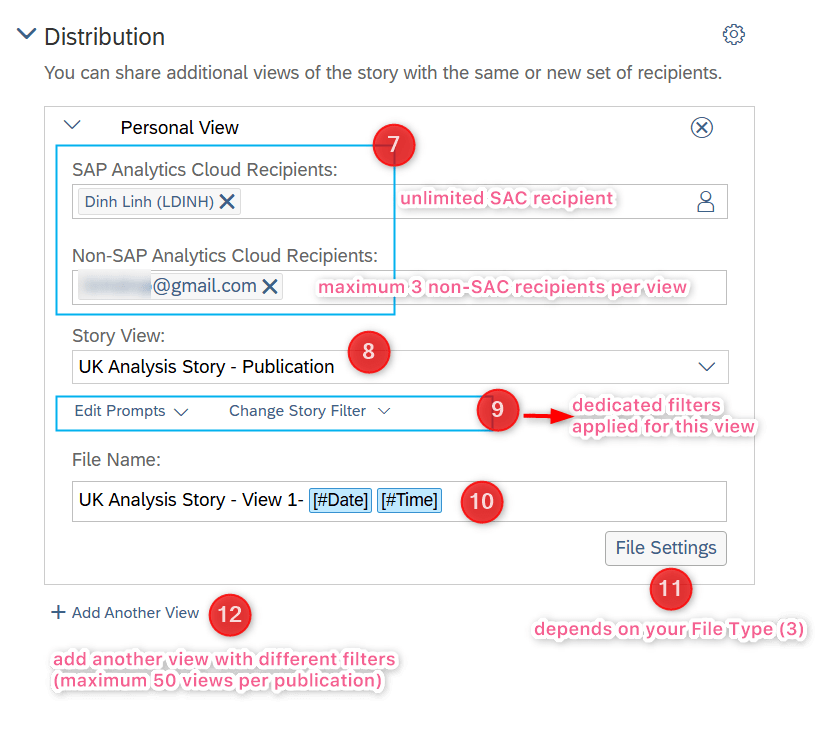
(7) Recipients: You can send this story to unlimited SAC recipients and maximum 3 Non-SAC recipients per view.
(8) Story View: Specify the current page or any bookmarks associated with this story
(9) Edit Prompts and Story Filter: Depends on your prompt and story filter setup, you can change the filter value for this view’s recipients.
Notes:
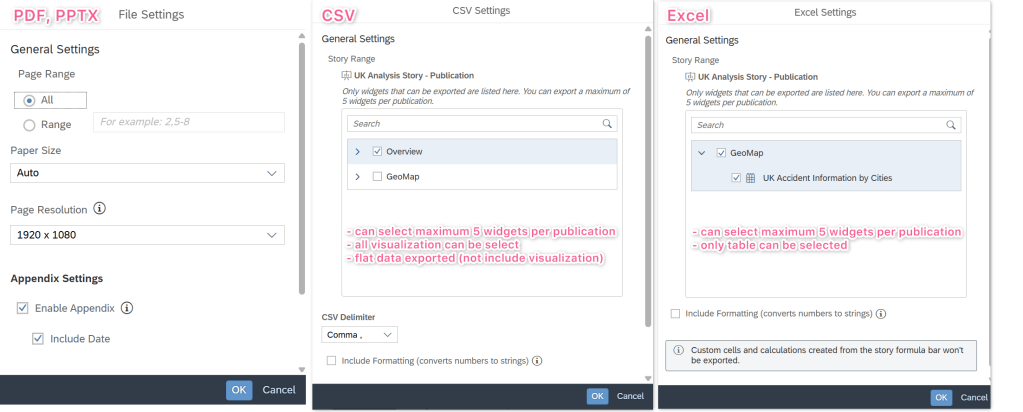
- Story Filter is not applicable for CSV and Excel File Type
- Depends on your initial filter setup in story, the selected value in Change Story Filter will be applied. For example if your story filter is single value only but you select “All member” in Change Story Filter => It considers the original single filter value only.
(10) File Name: This is the attachment name.
(11) File Settings: Depends on the File Type you selected on (3), the file setting will vary as below:
(12) Add another view: Create more view with different filters applied, maximum 50 views per publication
Step 3: Select Create button once you config all necessary information. Please schedule the start date in future.
You can navigate to SAC Calendar view to monitor or edit your publication:
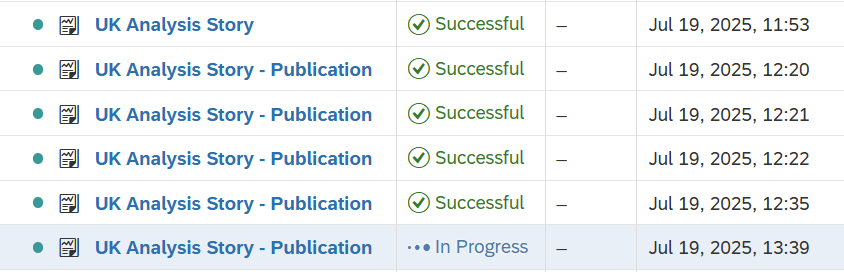
Publication result
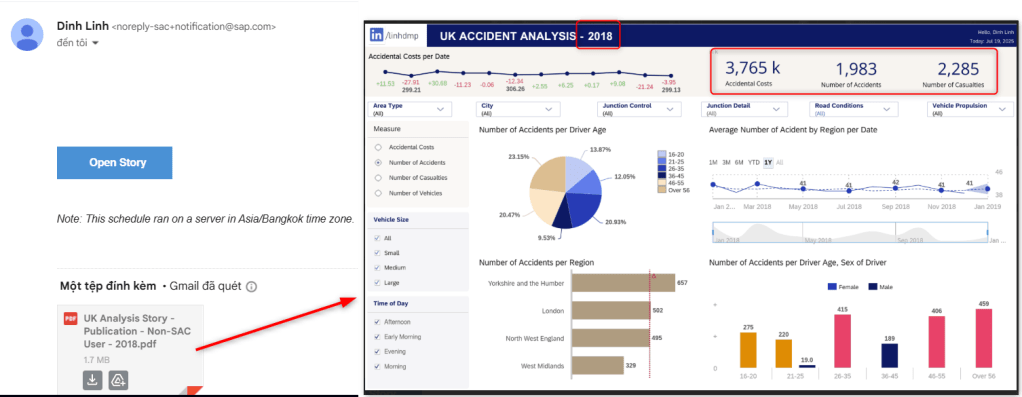
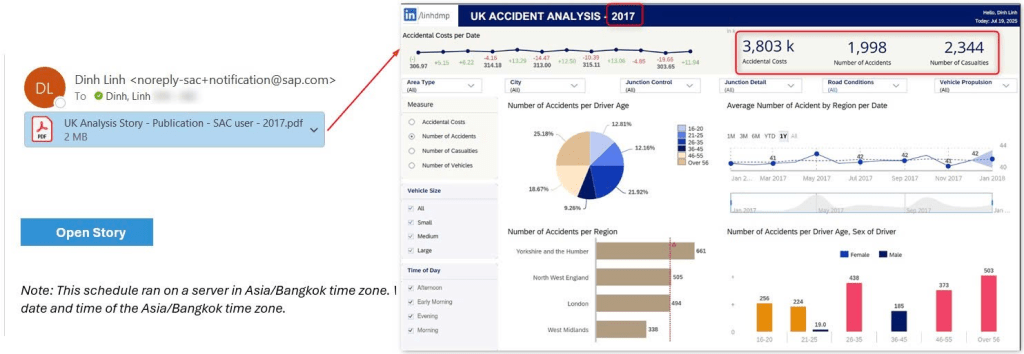
In this testing context, I will select only 2018 data for my non-SAC recipient and only 2017 for my SAC recipient.
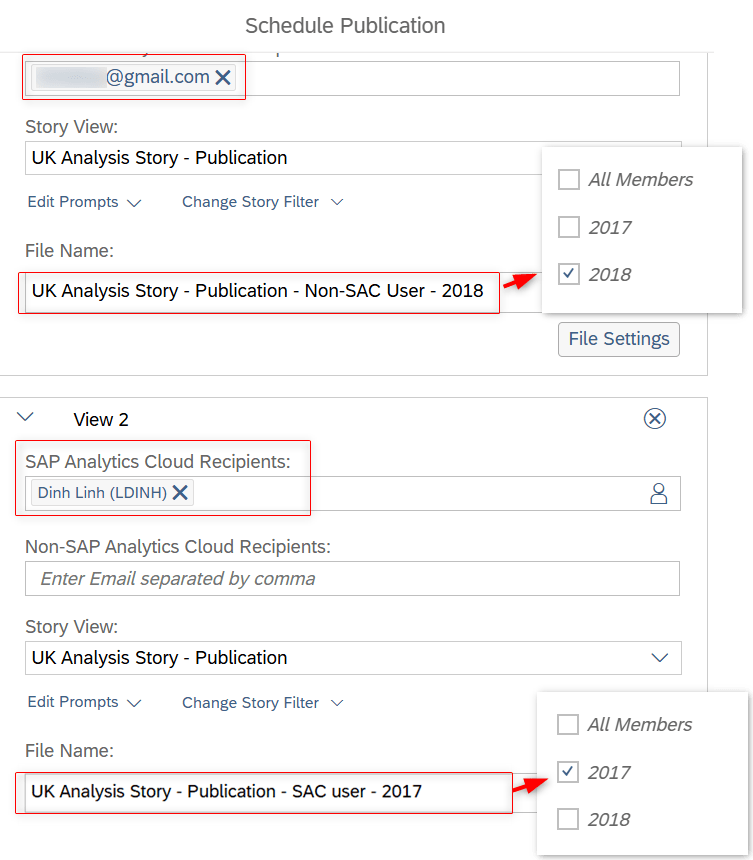
Non-SAC recipient’s view (Only 2018 data display):
SAC recipient’s view (Only 2017 data display):
Conclusion
Number of publications rely on SAC purchased licenses, at minimum of 25 licenses. Hope this explanation helpful for you. Thank you very much for spending your time reading, have a nice day!
 SAP Zero to Hero