Hi guys, in previous turtorial I shared step by step How to send data from S/4HANA Cloud to external system by using DRF – Data Replication Framework. Next, in this tutorial, I will share step by step send data to external system by using output type. For simple I will use PURCHASE ORDER business object to demo
EXPLORING API RELEVANT TO PURCHASE ORDER BUSINESS OBJECT
Go to SAP API hub
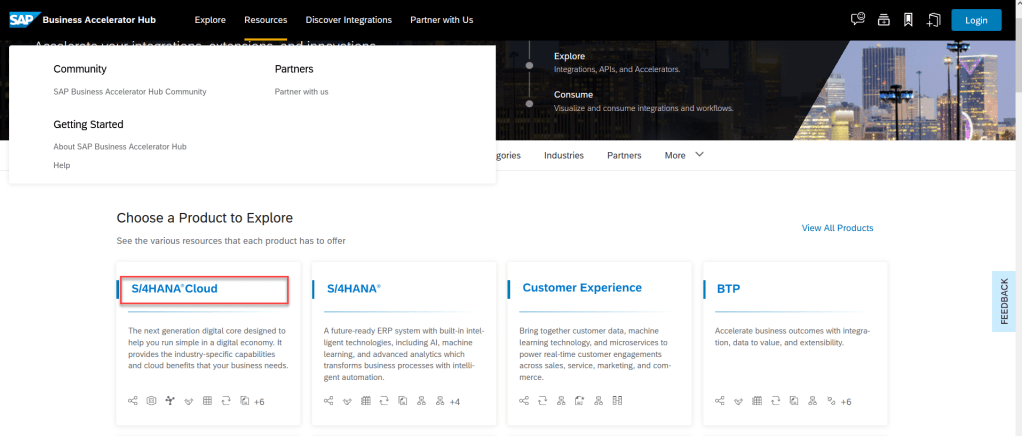
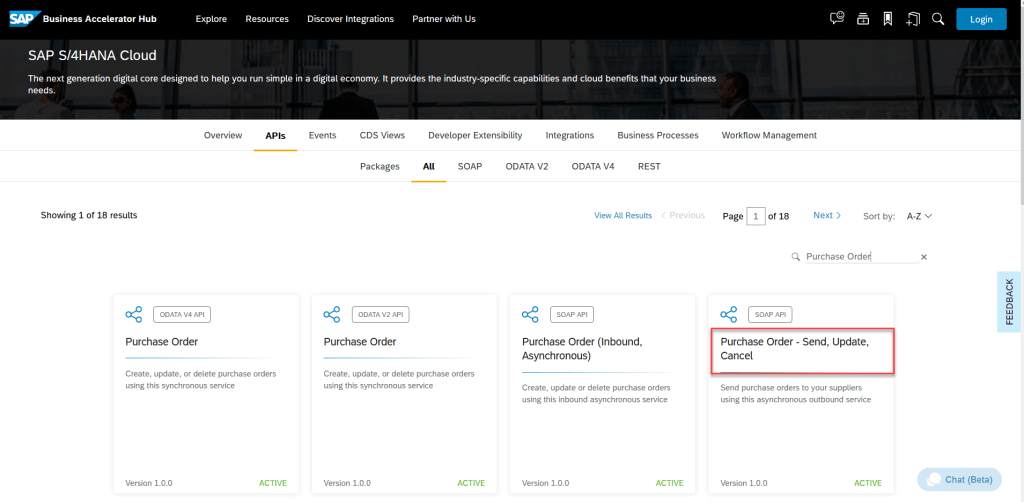
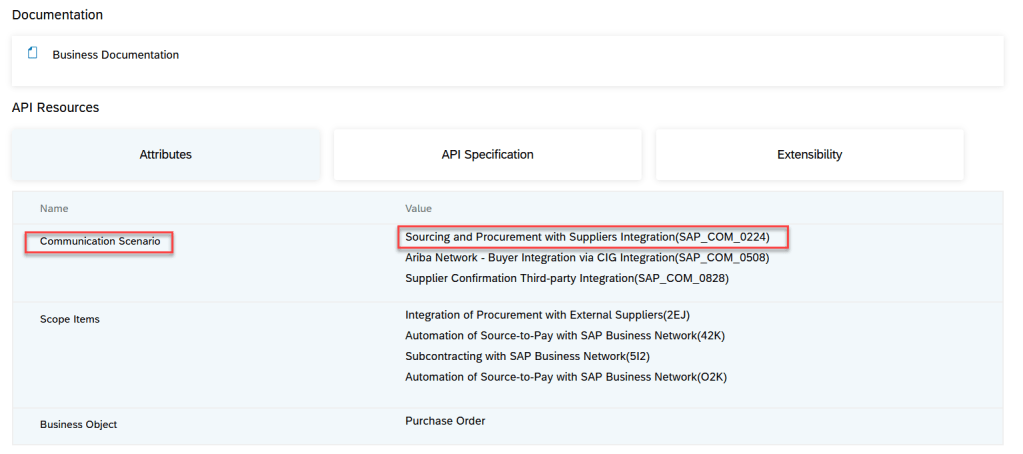
Select corresponding communication scenario for your integrated. In this, I select SAP_COM_0224
CONFIGURATION INTEGRATED ON S4HC
STEP 01 – COMMUNICATION USER
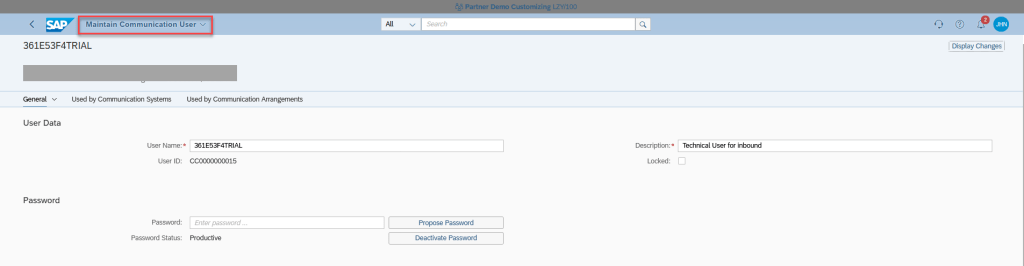
This is user which is used for communicate between systems. Every external system we should be create every user communication.
With INBOUND user we will create on S4HC
With OUTBOUND user we will create on external system and use in S4HC for OUTBOUND service
STEP 02 – COMMUNICATION SYSTEM
In integrated strategies, we will many external system. Ex: POS, CPI, WMS..etc..With every external system, we have to create on S4HC.
We will use COMMUNICATION SYSTEM app to do this
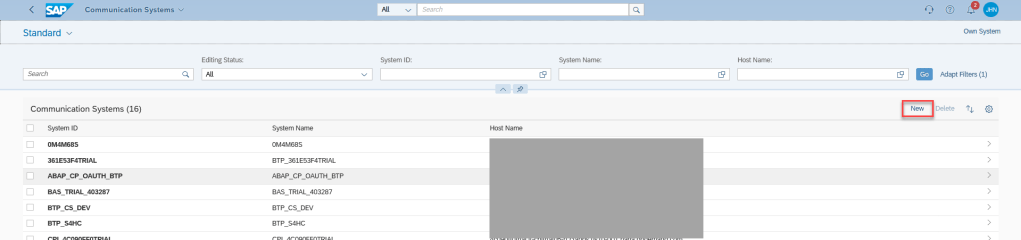
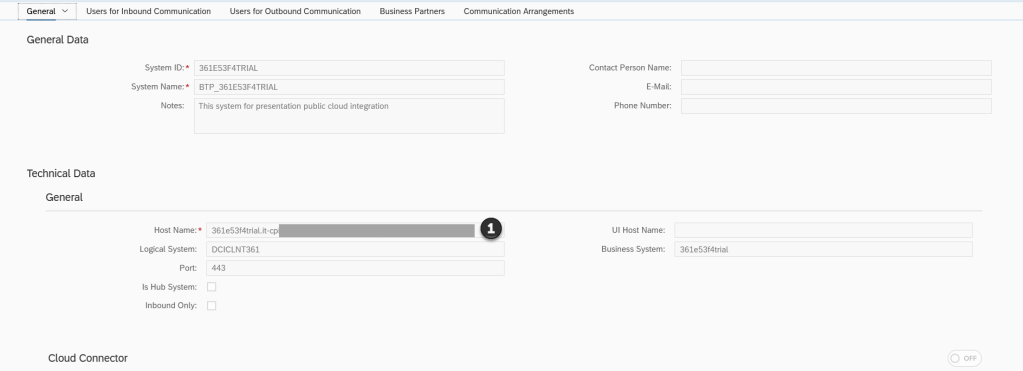
(1) – Host name of external system. If we use SAP CPI as external system then this is host name of CPI when we deploy IFLOW.
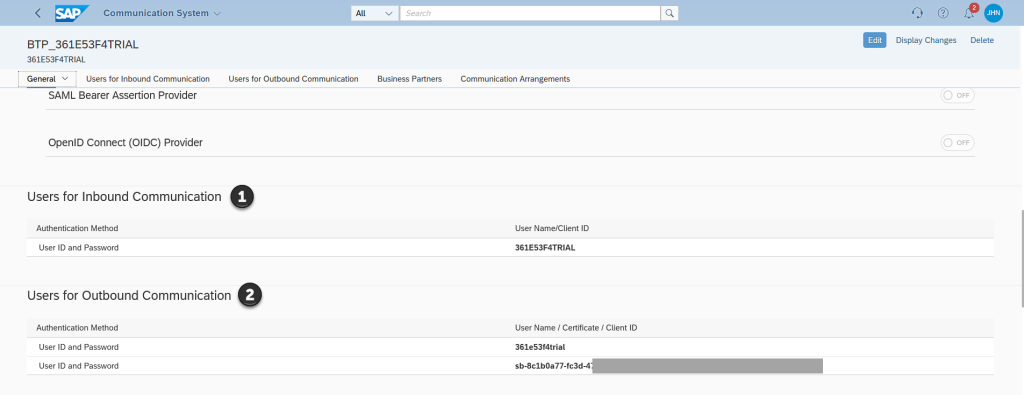
(1) – User inbound which we create in step 01
(2) – In this we use SAP CPI to receive data from S4HC, so this user is Client ID, Client Secret in service key of IFLOW
STEP 03 – COMMUNICATION ARRANGEMENT
After select communication scenario on API hub, we will use COMMUNICATION ARRANGEMENTS app to create scenario.
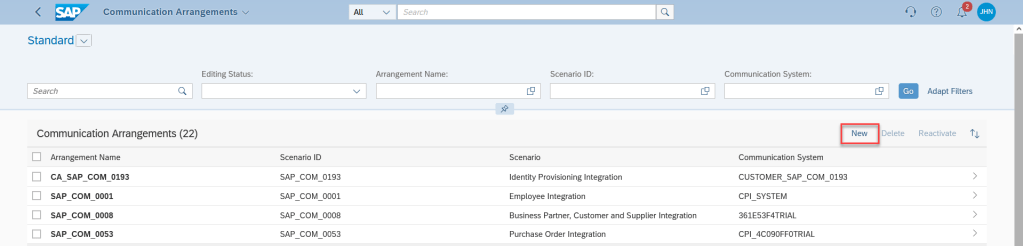
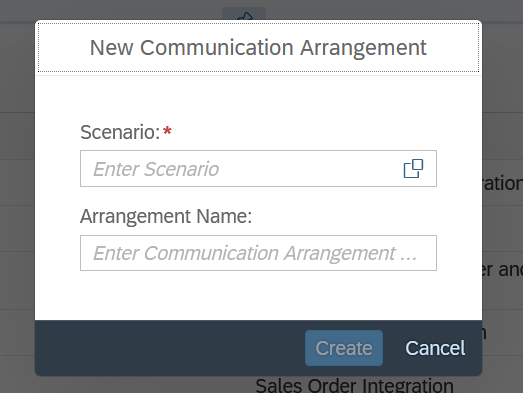
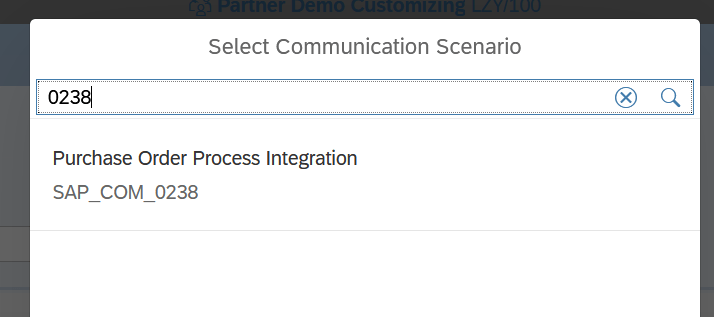
NOTE
If you can not find scenario in this, check scope item actived by SAP or not.
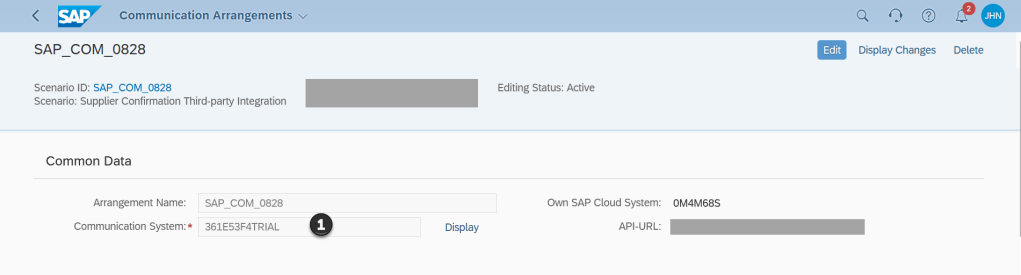
(1) – Select SYSTEM which integrated with S4HC in this scenario.
When you select SYSTEM, user INBOUND and OUTBOUND will fill automatically.

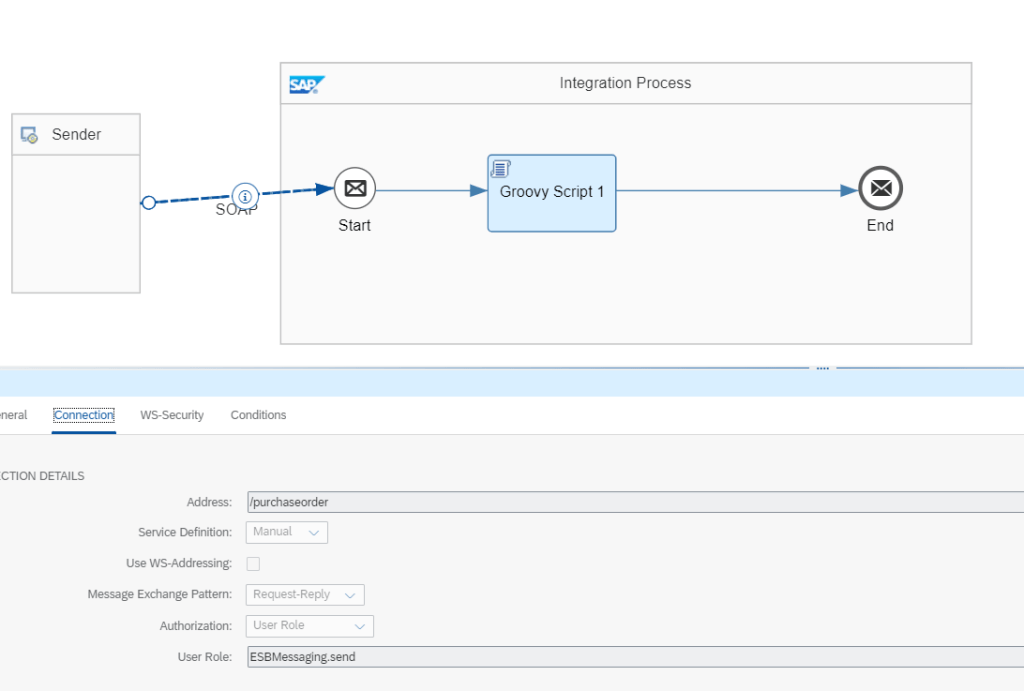
(1) – Input path. This path we will get in SAP CPI after deploy IFLOW.
Because of we select method SOAP so we need HOST & RESOURCE SOAP of external system. In this we use SAP CPI so IFLOW will like this
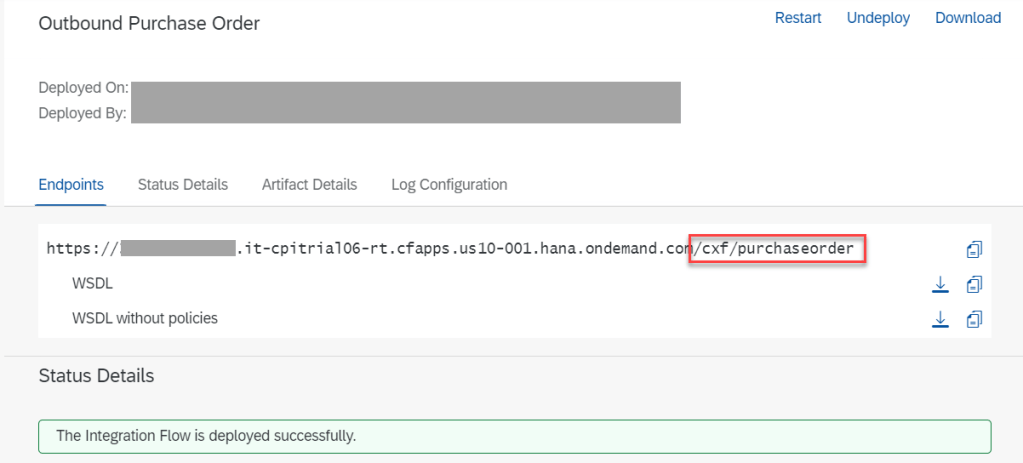
STEP 04 – CONFIGURATION OUTPUT TYPE
Next, we will configure output type by using OUTPUT PARAMETER DETERMINATION app.
With this configure, we just focus into OUTPUT TYPE, RECEIVER, CHANNEL
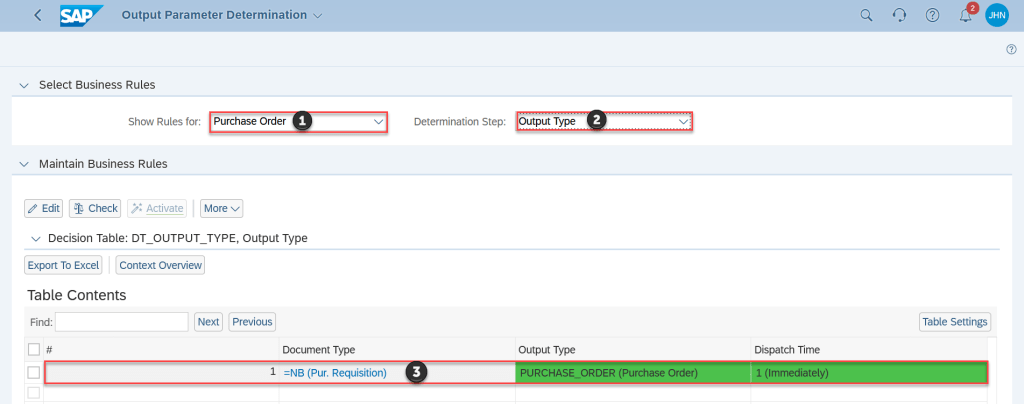
(1) – Rule for PURCHASE ORDER
(2) – Step OUTPUT TYPE
(3) – We just send all purchase order with DOCUMENT TYPE is NB
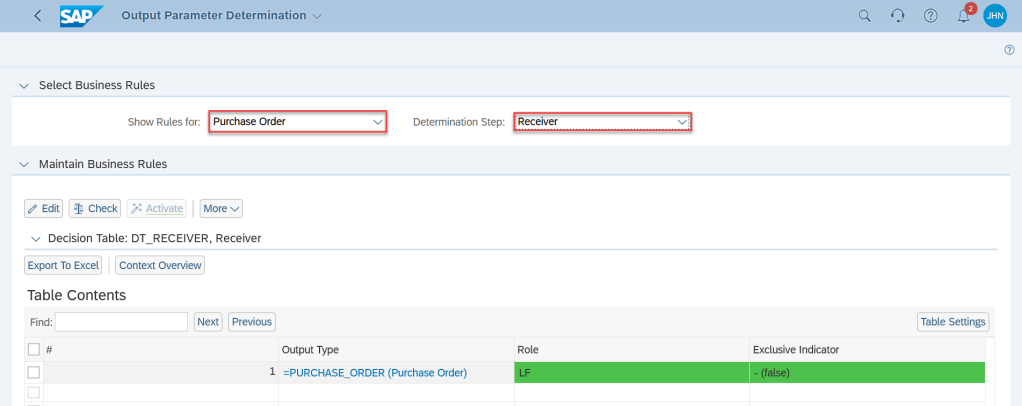
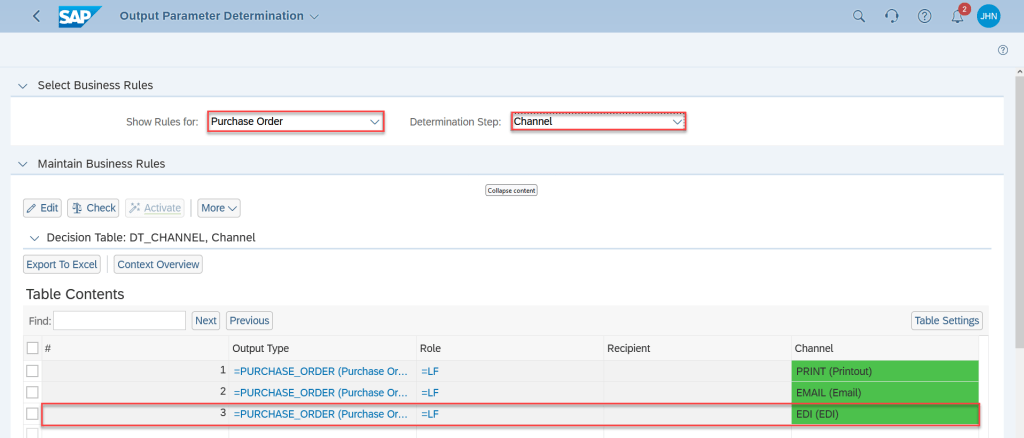
STEP 05 – CONFIGURATION MESSAGE DASHBOARD
In integrated scenario, we need to monitor all message which sent from S4HC, so we have to configure to do this by using message dashboard.
First we need add namespace for user by using ASSIGN RECIPIENTS TO USERS app

UNIT TEST AND MONITORING
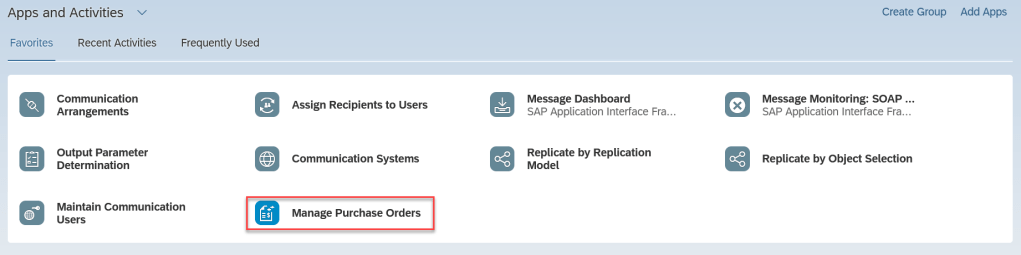
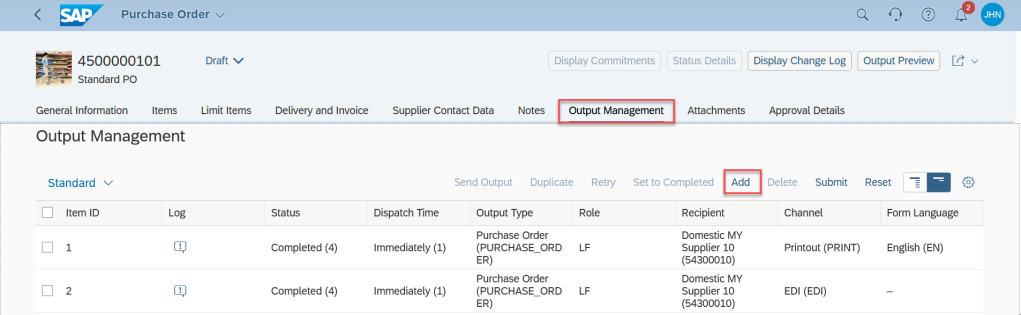
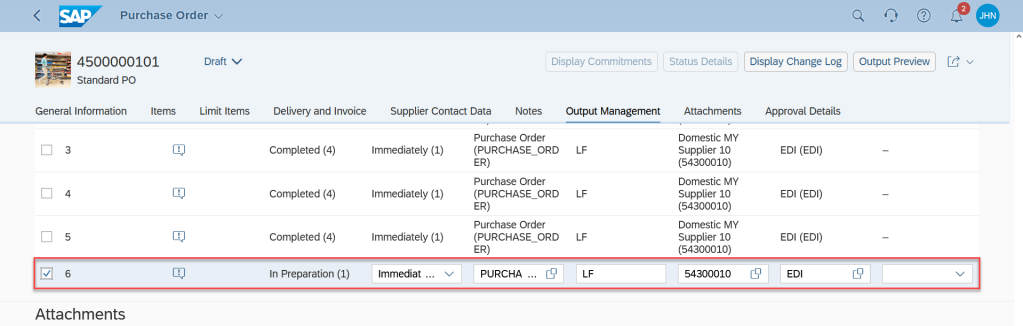
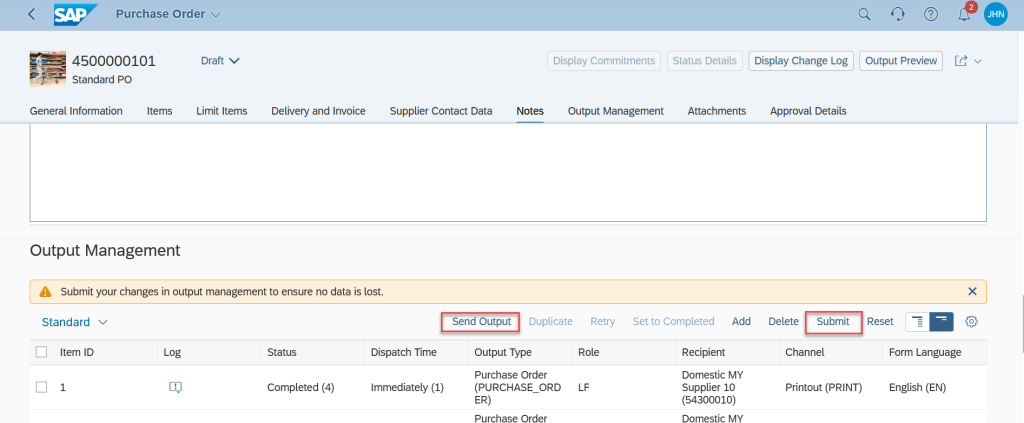
We will send purchase order to external system by using MANAGE PURCHASE ORDERS app
We will monitoring message by using MESSAGE DASHBOARD app
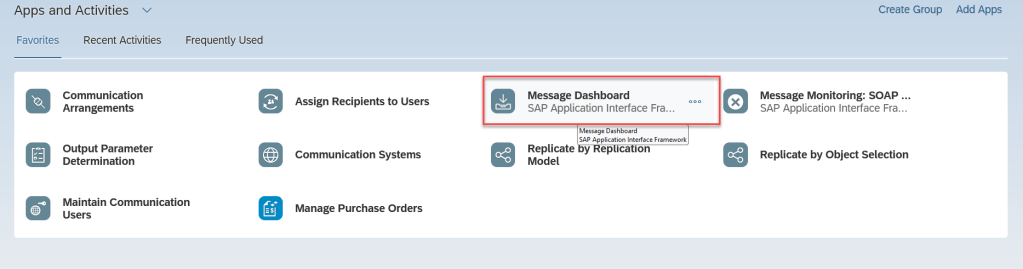
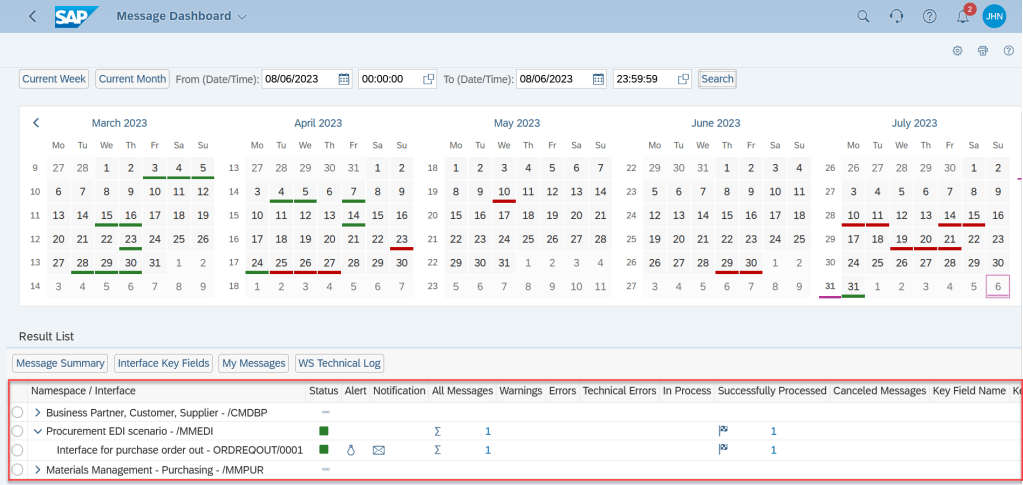
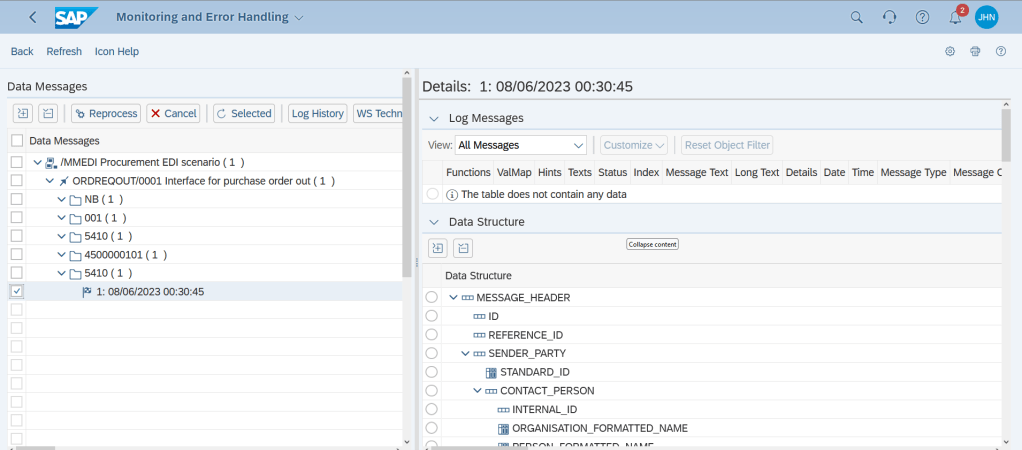
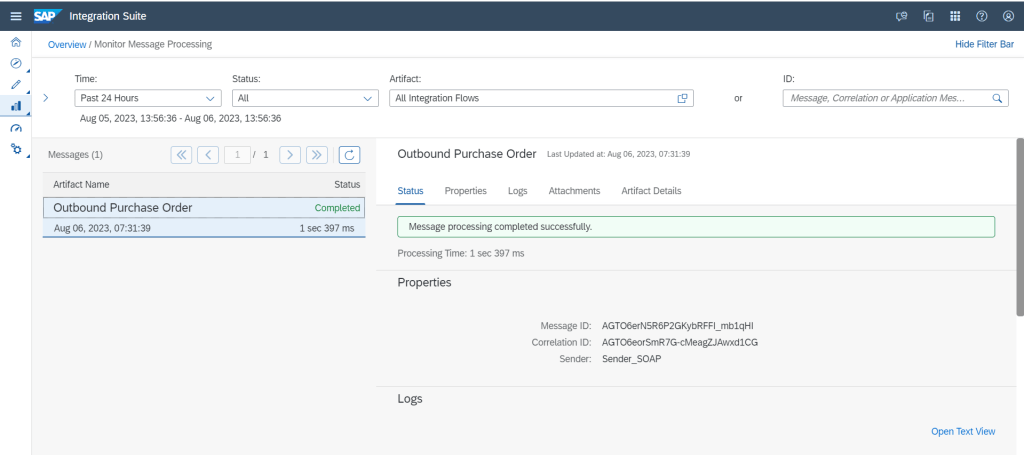
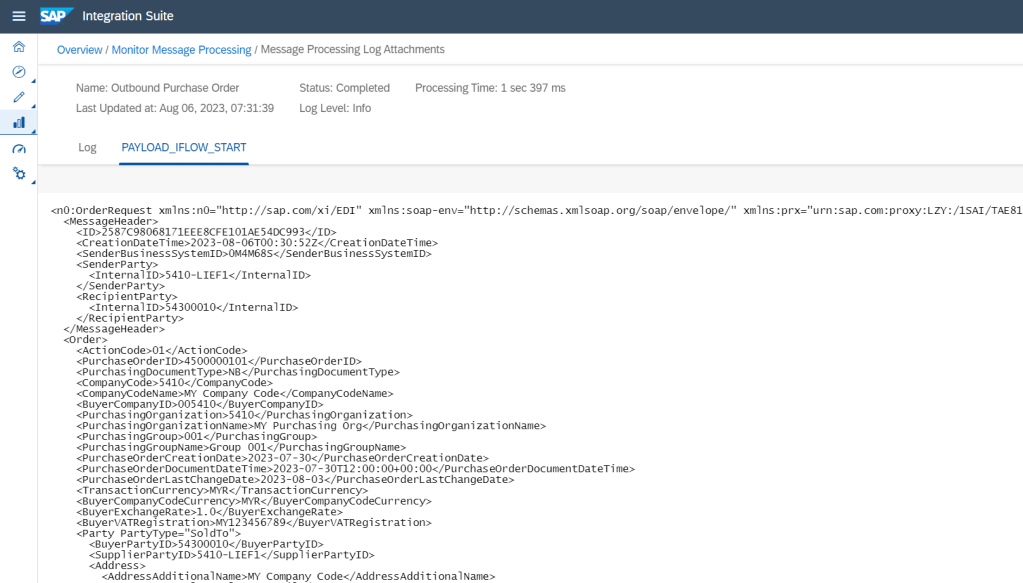
Monitoring on receiver system – SAP CPI
Payload
SUMMARY
OK, this is second article about integrated with S/4HAHA cloud public edition. In next article I will share about inbound service, send data from external system to S4HC. Happy to share my understand with all of you and more happy when receiver advices from you. Thanks for your reading and any advice kindly leave your comment on this.
Thanks
JOSEPH
 SAP Zero to Hero
Hello, good blog.
In step 5, ASSIGN RECIPIENTS TO USERS ap, the namespace /MMEDI does not appear.
Am I missing some configuration?
Thank you.
LikeLike
Hi Joseph
Could you please create an document on How to send data from CPi to S/4hana inbound pls
Regards,
saikrishna
LikeLike
Hi,
In this blog, we have article for inbound from CPI to SAP with IDOC Receiver Adapter.
LikeLike